Getting Started
How to run, score, and follow a tournament on BracketBoard.
Run a wrestling event end to end: create it, add weight classes and wrestlers, share the public link, and score the day.
- 1
Create the event
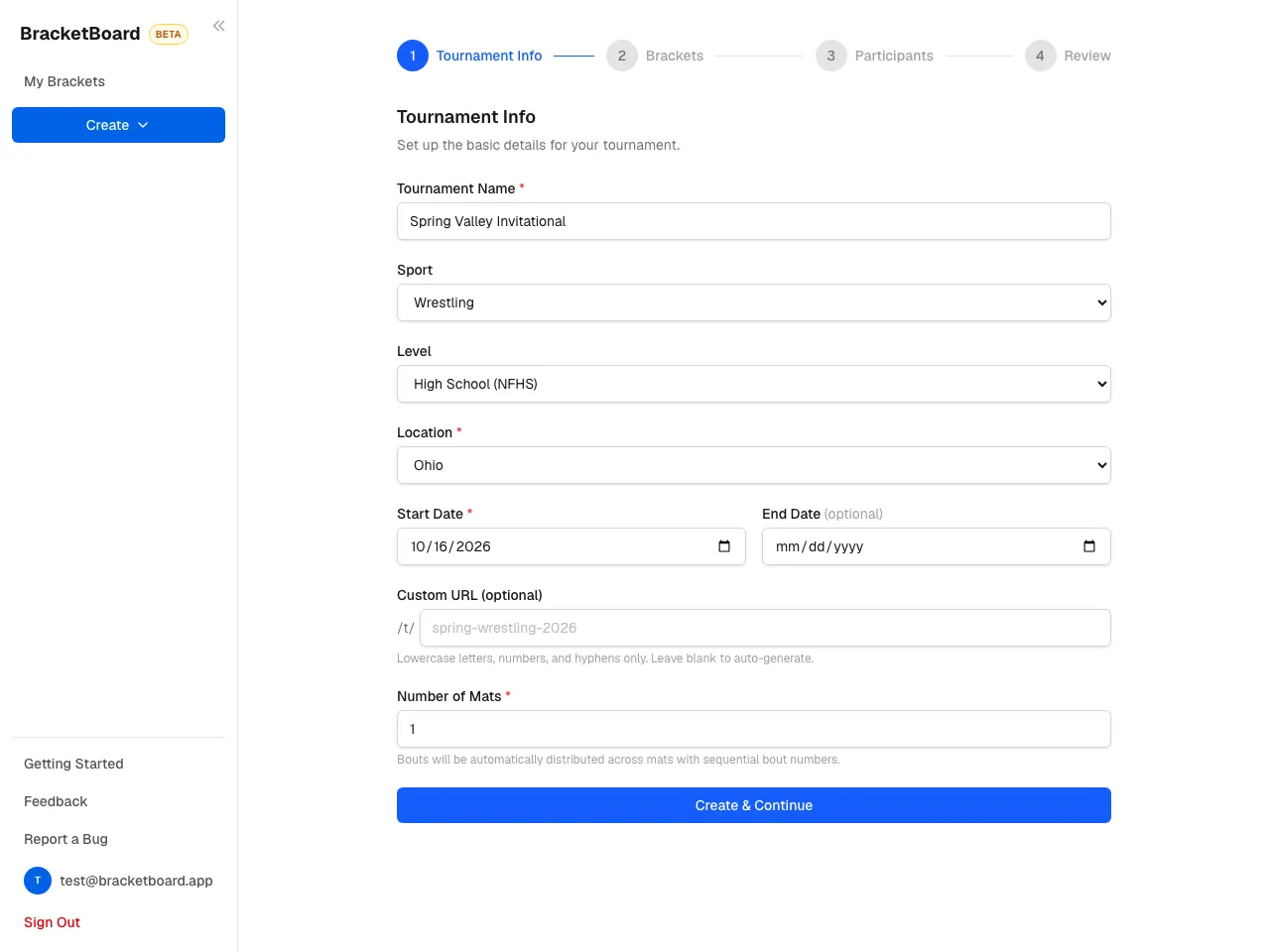
On your dashboard, click Create and choose a tournament. The first step asks for the name, sport, Level, location, dates, and number of mats.
The Level is the ruleset — High School (NFHS), College (NCAA), or Freestyle (UWW). It sets the scoring, the periods, and which weight-class presets you get.
- 2
Add weight classes
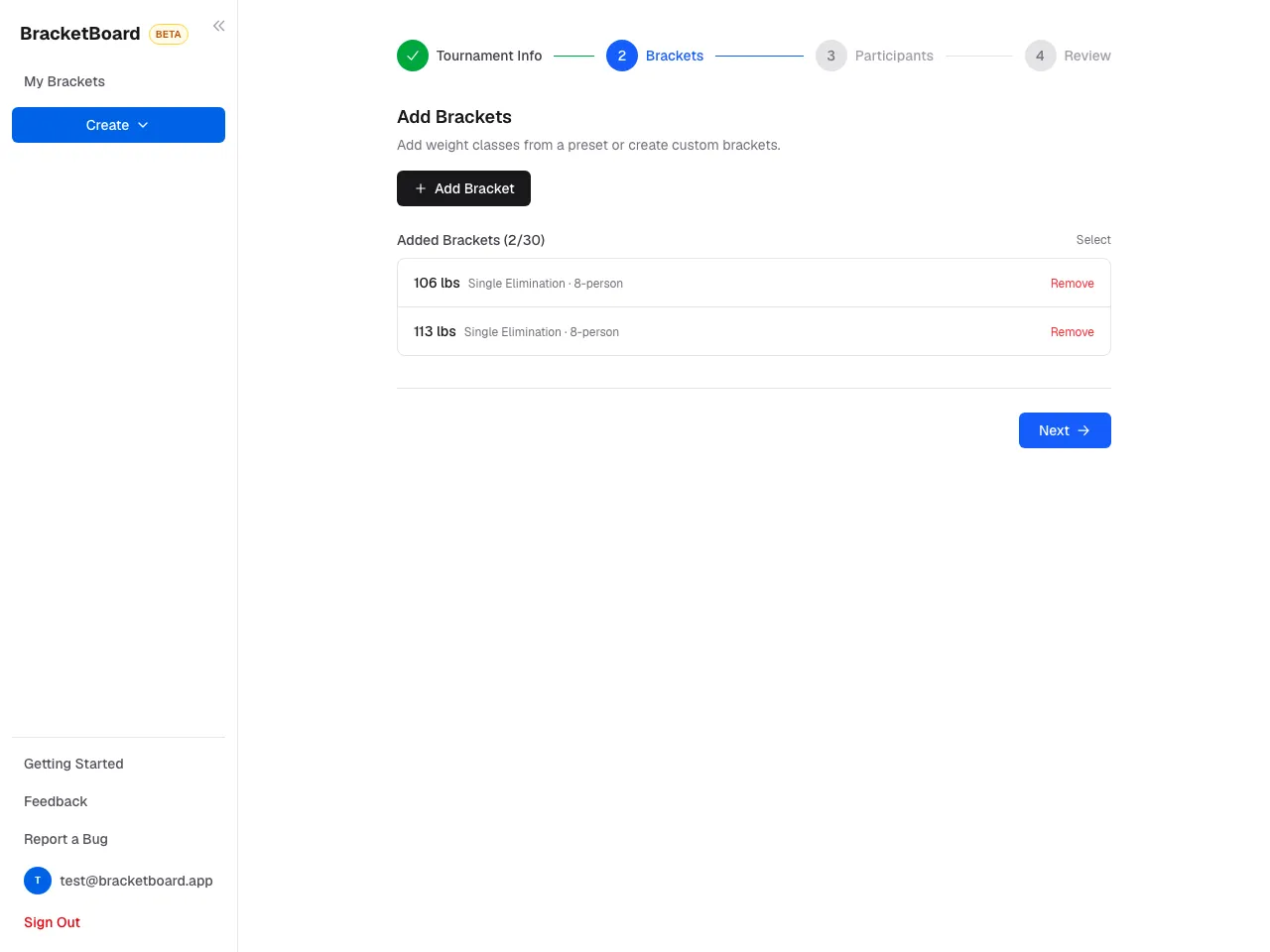
Click Add Bracket and pick a weight-class preset (NFHS, NCAA, or UWW) to add a full set at once, or create a custom weight class by name.
Each bracket is single elimination, double elimination, or a round robin.
- 3
Add wrestlers
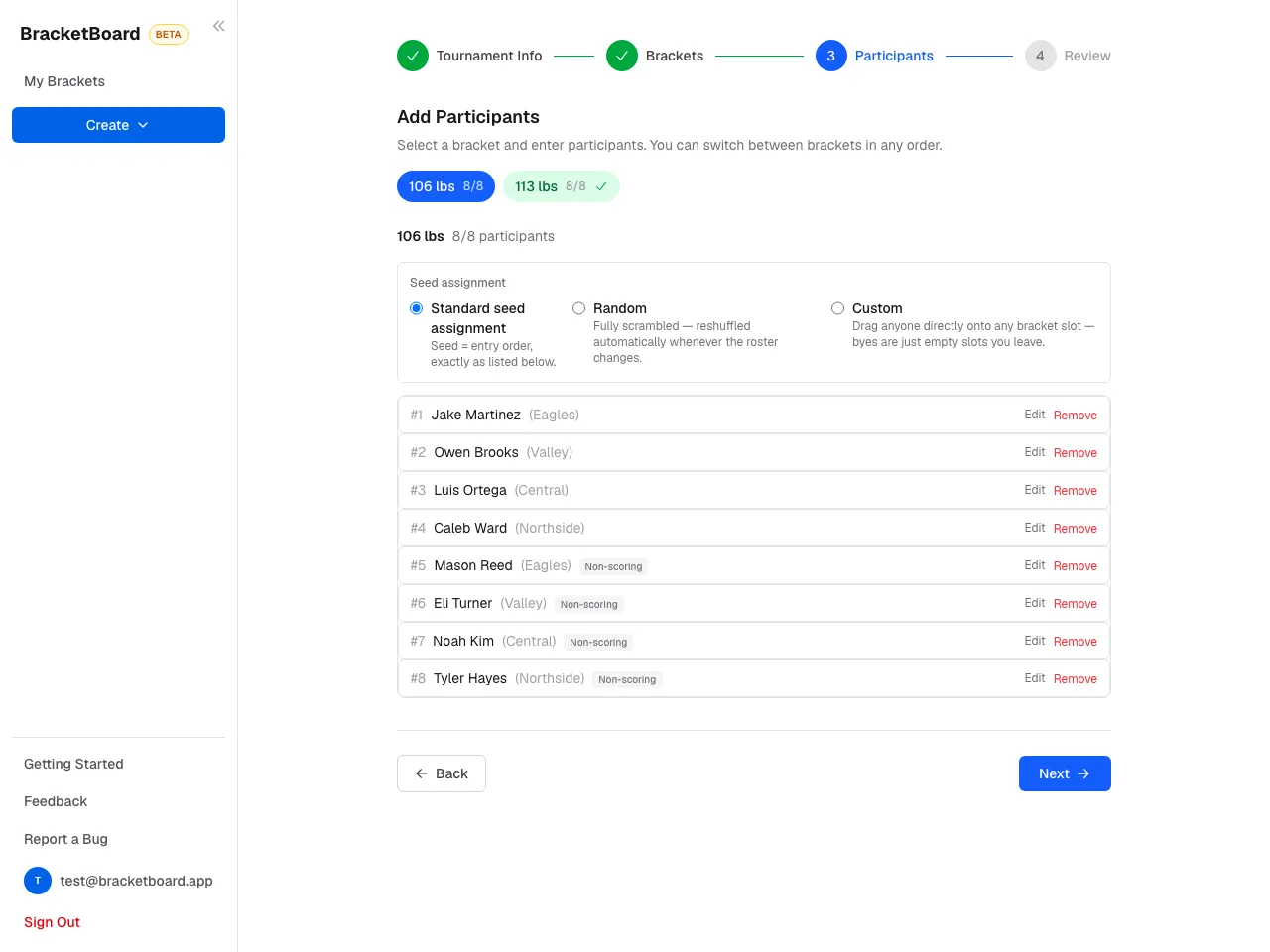
For each weight class, paste rows from a spreadsheet, upload a CSV, or type them in. Columns are
name, team.Seed assignment is Standard (seed = the order listed), Random, or Custom (drag anyone onto any bracket slot).
- 4
Review and generate
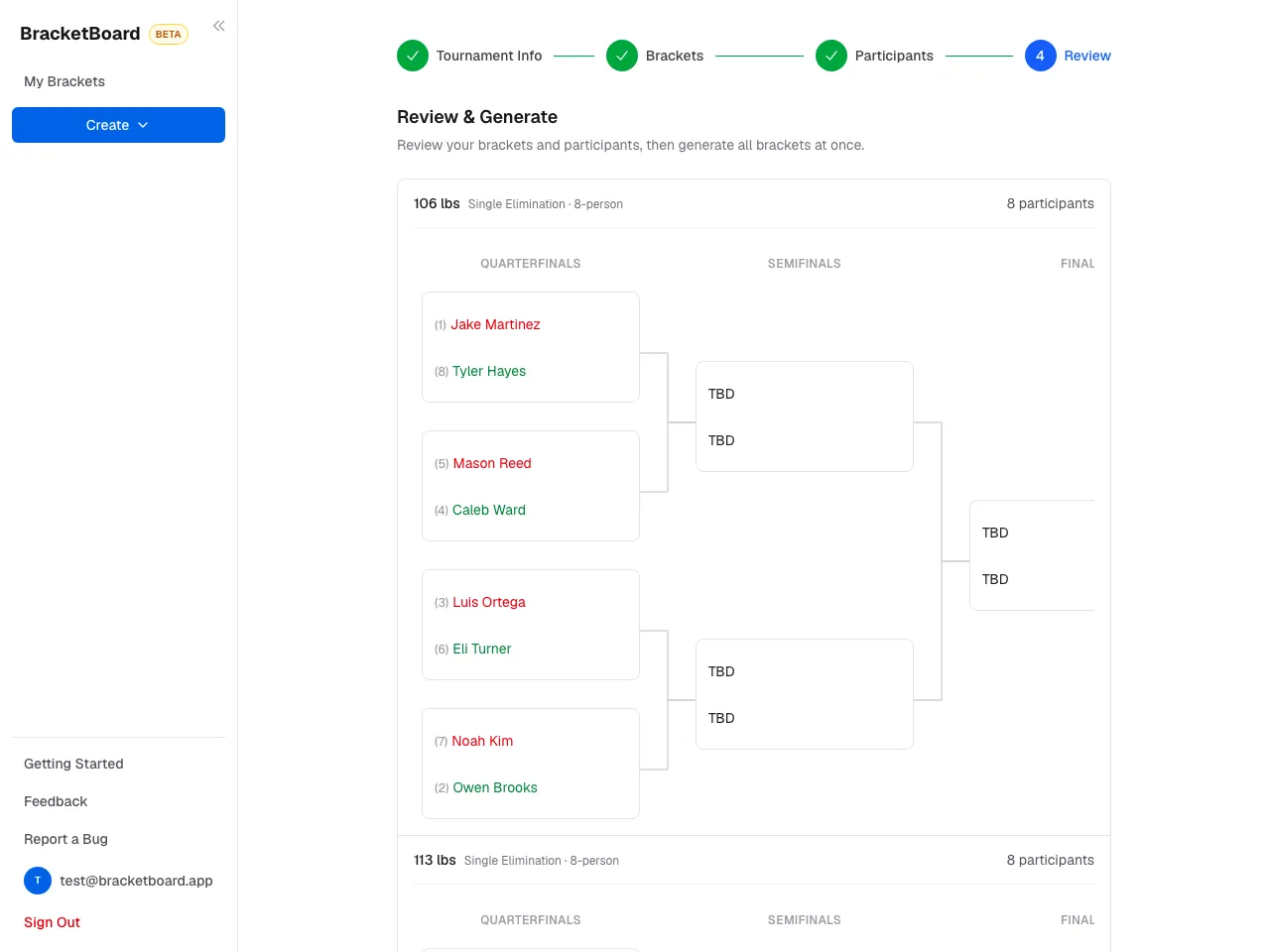
The last step previews every bracket exactly as it will be created, byes included. Click Generate to create them and make the event live. Standard-size events are free — see pricing for when a larger one pays.
- 5
Share the public link
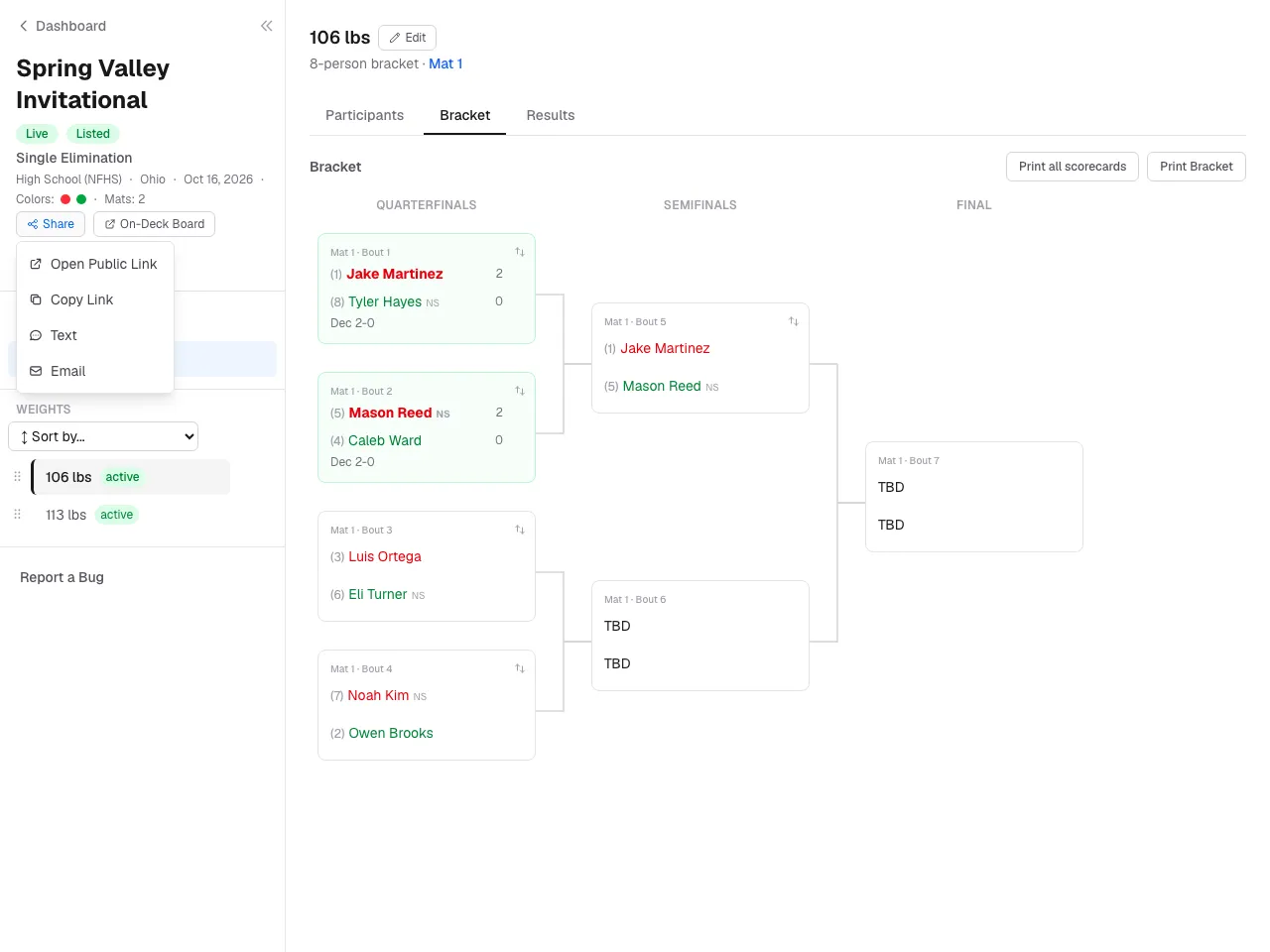
Click Shareto copy the public link, or send it by text or email. Spectators don't need an account. On-Deck Board opens a screen for the venue TV showing what's next on each mat.
- 6
Invite mat workers (optional)
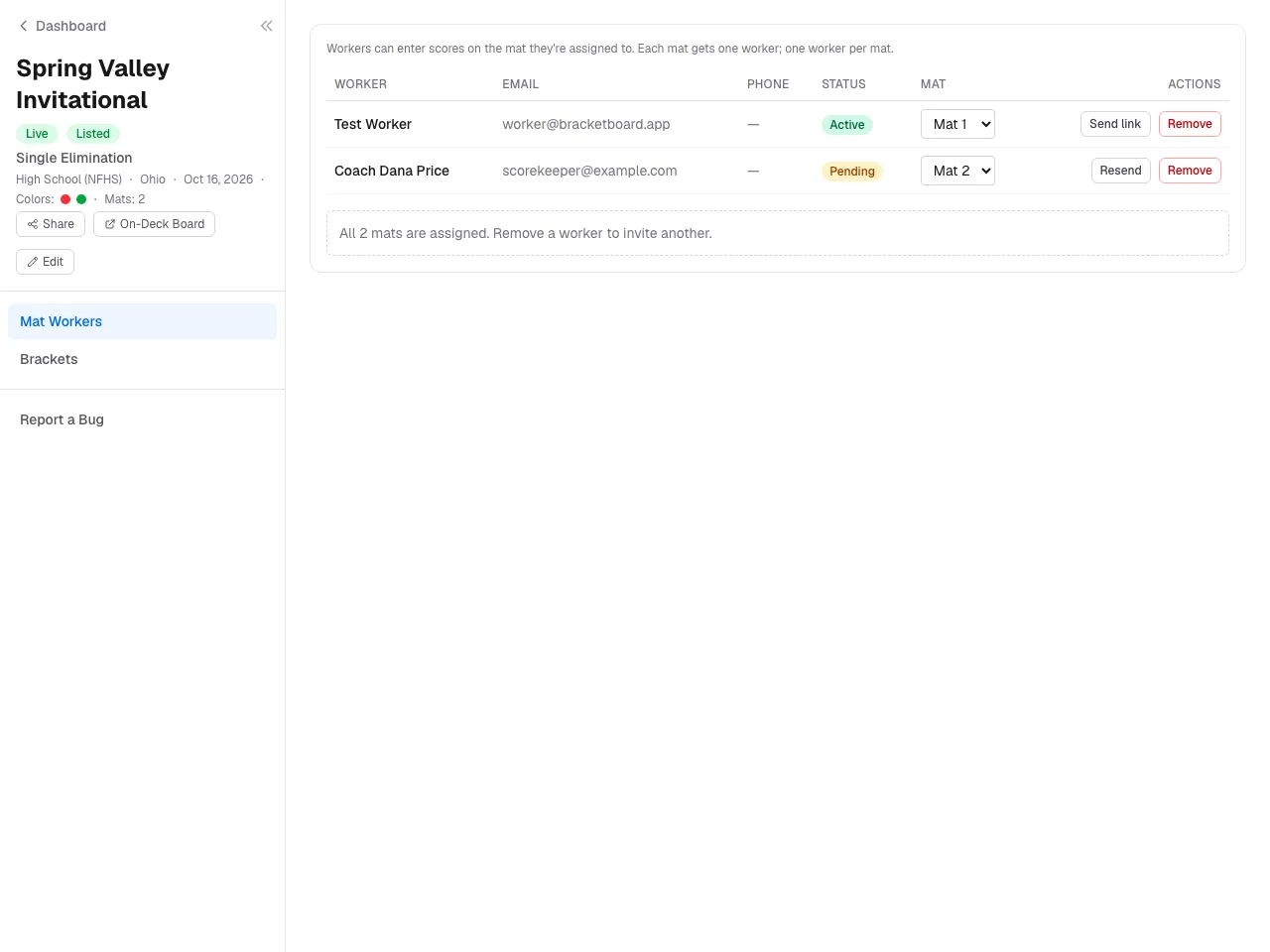
Open Mat Workers and invite one worker per mat by name and email. They get a sign-in link and can score only their own mat — see the Workers tab. With a single mat, every weight class goes on it automatically.
- 7
Score the day
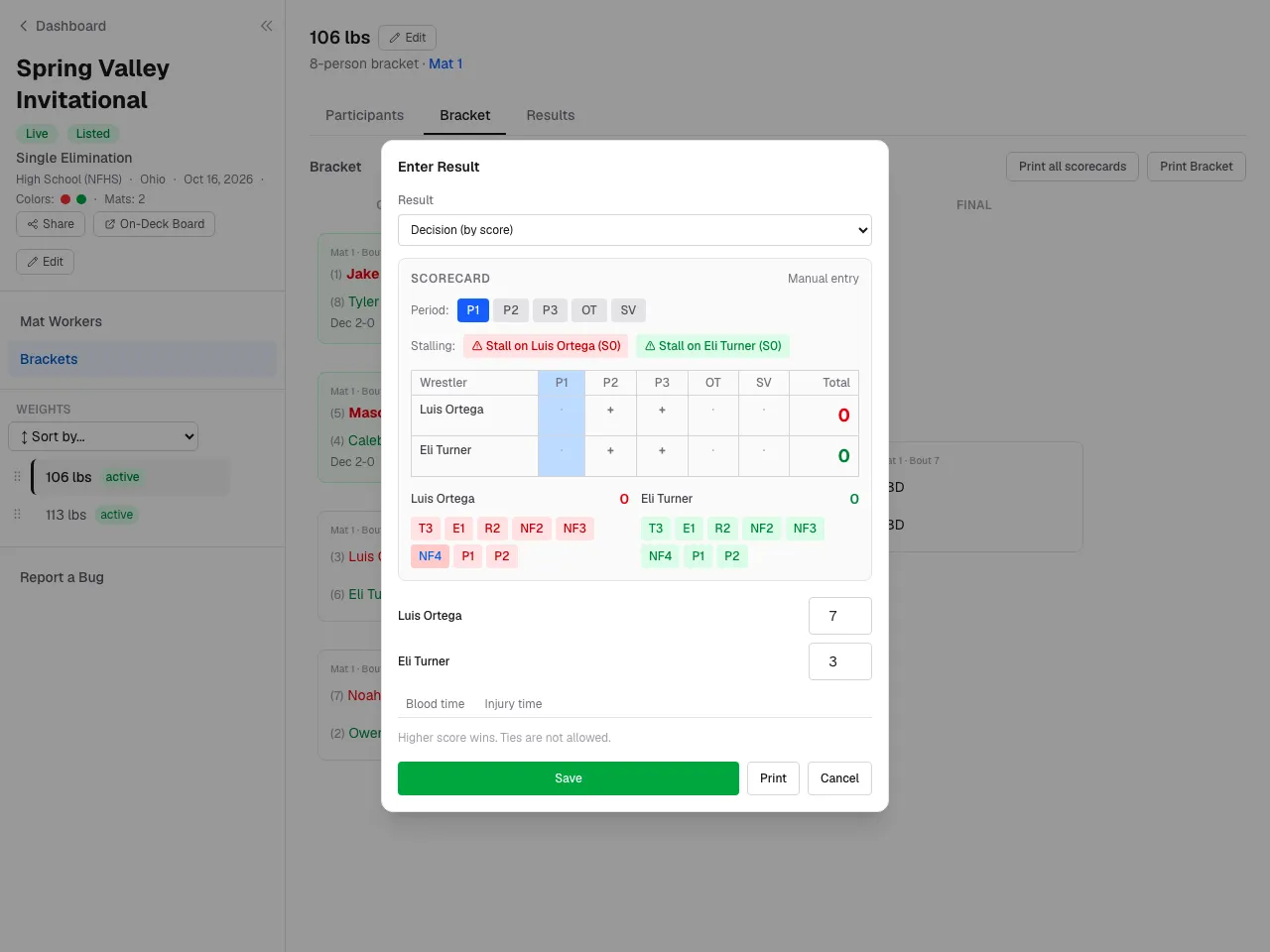
Click a match card, choose the result — decision, major, tech fall, fall, forfeit, DQ, or injury — enter the score, and save. Winners advance automatically and the public bracket updates live.


Still stuck? Contact us.